Integration by Closed Caption Creator
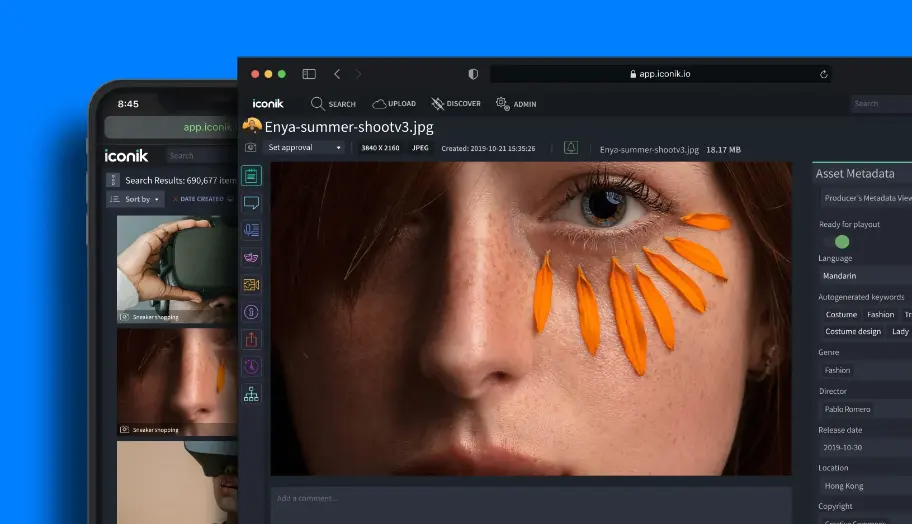
Edit & Review Subtitles in Iconik
Iconik users can create and edit subtitle files using Closed Caption Creator
How It Works
From Iconik asset to published subtitles
A round-trip workflow that keeps your media and your subtitles in sync.
STEP 1
Open
Open any asset from your Iconik library directly in Closed Caption Creator — managed and unmanaged files supported.
STEP 2
Edit & Review
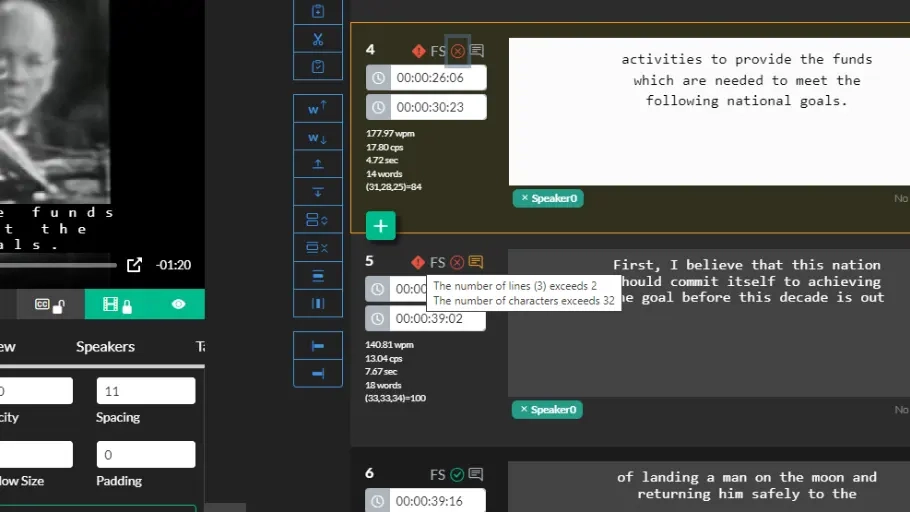
Create new subtitle tracks or edit existing files with AI captioning, machine translation, and frame-accurate playback.
STEP 3
Publish
Publish finished subtitle files straight back to Iconik with the custom publishing panel.
- 50+Languages supported by automatic captioning
- 30+Formats — SRT, VTT, SCC, XML, TTML, and more
- Frame-accuratePlayback for precise review workflows
Meet the Iconik Connector
A deeper look at how the Iconik Connector registers with your MAM and moves assets and subtitle files between Iconik and Closed Caption Creator.
Unlock new subtitle and localization workflows
Create and edit subtitles managed by Iconik using Closed Caption Creator's web-based editor.
Iconik users can open assets directly in Closed Caption Creator to enable subtitle authoring, review, and editing workflows. Create new subtitle tracks from scratch or edit existing files using our web-based UI. Publish subtitle files directly to Iconik using our custom publishing panel.
- Create multilingual subtitles using machine translation
- Automatic captioning in over 50 languages
- Import/export managed and unmanaged files
- Supported formats: SRT, VTT, SCC, XML, TTML, and more
- Frame-accurate playback
- Project Sharing & Collaboration
- Support for multiple storage types
Review & Approval
Review subtitle work before it reaches your MAM
Run a real approval workflow inside Closed Caption Creator, then publish only approved subtitles back to Iconik.
Team leads and project managers can review edits, flag issues, and communicate with captioners using the QC & Review panel — the same toolkit used for broadcast delivery.
- QC Style Guides flag technical and content issues automatically
- Custom notes, tags, and pass/fail approval checkboxes
- Share projects with guest reviewers
- Publish approved subtitles directly to Iconik
Ready to integrate?
Contact our support team when you're ready to try an integration.
We'll schedule a short 30 minute call to help answer any questions and walk you through configuring your system. Most of our integrations can be set up in just a few minutes.
Contact UsMore Solutions
Iconik integration questions
Common questions about editing, reviewing, and publishing subtitles with Iconik and Closed Caption Creator.
Iconik users can open assets directly in Closed Caption Creator from their MAM to enable subtitle authoring, review, and editing workflows. Both managed and unmanaged files can be imported and exported.
Yes. Subtitle files can be published directly to Iconik using Closed Caption Creator's custom publishing panel, so finished work lands back in the MAM alongside the asset.
Closed Caption Creator supports more than 30 caption and subtitle formats, including SRT, VTT, SCC, XML, and TTML, with frame-accurate playback for review workflows.
Yes. Subtitles can be created with automatic captioning in over 50 languages and localized with machine translation, all within the same project.
Closed Caption Creator supports multiple storage types, so the integration fits existing Iconik storage configurations. Contact the team to walk through configuring your system — most integrations are set up in just a few minutes.